GitLab → Jira: Linking Repositories to Work Items
Jira and GitLab’s native integration surfaces commits, branches, and deployments inside a Jira work item. What it doesn’t provide is the reverse view: given a GitLab project, which Jira issues has it ever referenced? This “How To?” offers a solution to wire a GitLab push webhook to Jira Automation so that every push stamps the referenced issues with a label identifying the repository.
The end result is JQL like this:
project = PROJ AND "GitLab Projects[Labels]" = my-service
Overview
GitLab (Push events) → Jira Automation (Incoming webhook)
The flow:
- A developer pushes to any branch in GitLab
- GitLab fires a Push event webhook to Jira
- Jira Automation extracts the repository name and any Jira issue keys from the event
- The matching issues get a label like
my-serviceadded to the GitLab Projects custom field
Prerequisites
- Jira Cloud Premium or higher Jira Automation is required (not available on Free/Standard plans)
- Jira admin rights to create custom fields and add them to screens
- GitLab project Maintainer or Owner role for configuring webhooks
Step 1 - Jira: Create a custom label field
- Go to Jira settings → Issues → Custom fields
- Click Create custom field
- Select Labels (multi-value field)
- Name it GitLab Projects
- Configure the context: the wizard will ask which projects and issue types the field applies to. Choose All projects for a global context, or select specific projects if you want to keep the field scoped
- Add it to the relevant screens (Create / Edit / View)
Why labels? They allow multiple projects per issue, are searchable, and compose well in dashboards and JQL queries.
Step 2 - Jira: Create the Automation rule
- Go to your project → Project settings → Automation
- Click Create rule
- Trigger: Incoming webhook
- Work items: No work items from the webhook
Keep both the Webhook URL and the Secret that Jira generates for Step 4.
Step 3 - Jira: Build the automation logic
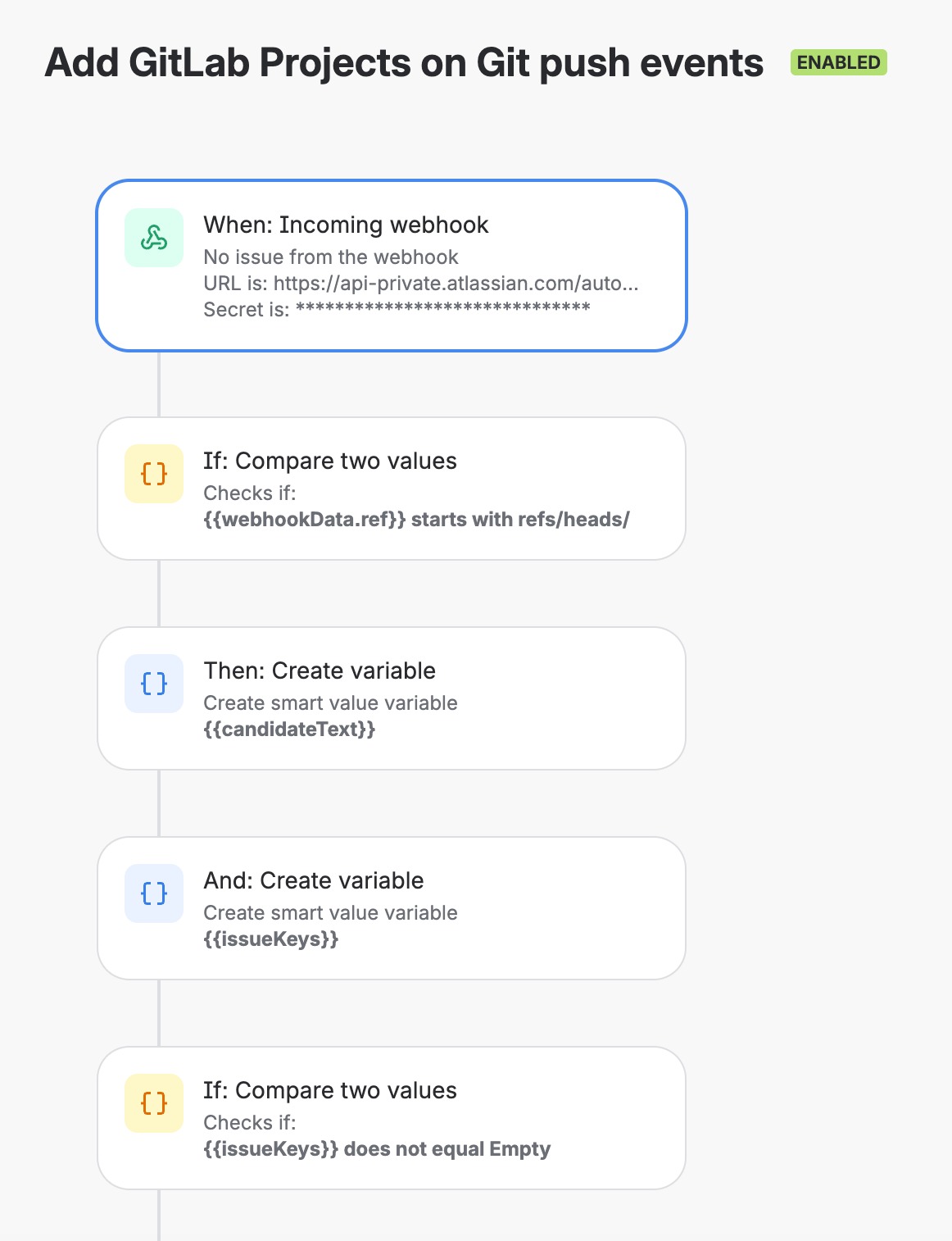
This is where the real work happens. The automation uses variables to extract the issue key and normalize the project name before touching any Jira issues.
For each variable below, add a Create variable action in the rule, set the variable name as shown, and paste the expression as its value.
Guard condition: only process branch pushes
Add a first IF condition at the top of the rule so that tag pushes and other non-branch events are skipped:
{{webhookData.ref}} starts with refs/heads/
Variable: candidateText
Combine the branch ref, the top-level message (if any), and all commit messages into one string to search against:
{{webhookData.ref}} {{webhookData.message}} {{webhookData.commits.message.join(" ")}}
Variable: issueKeys
Extract every Jira issue key from candidateText. Adjust the project key prefix (PROJ) to match your Jira project. You can target additional projects by expanding the pattern, e.g. PROJ|XYZ.
{{ candidateText.match("((?:PROJ)-\d+)") }}
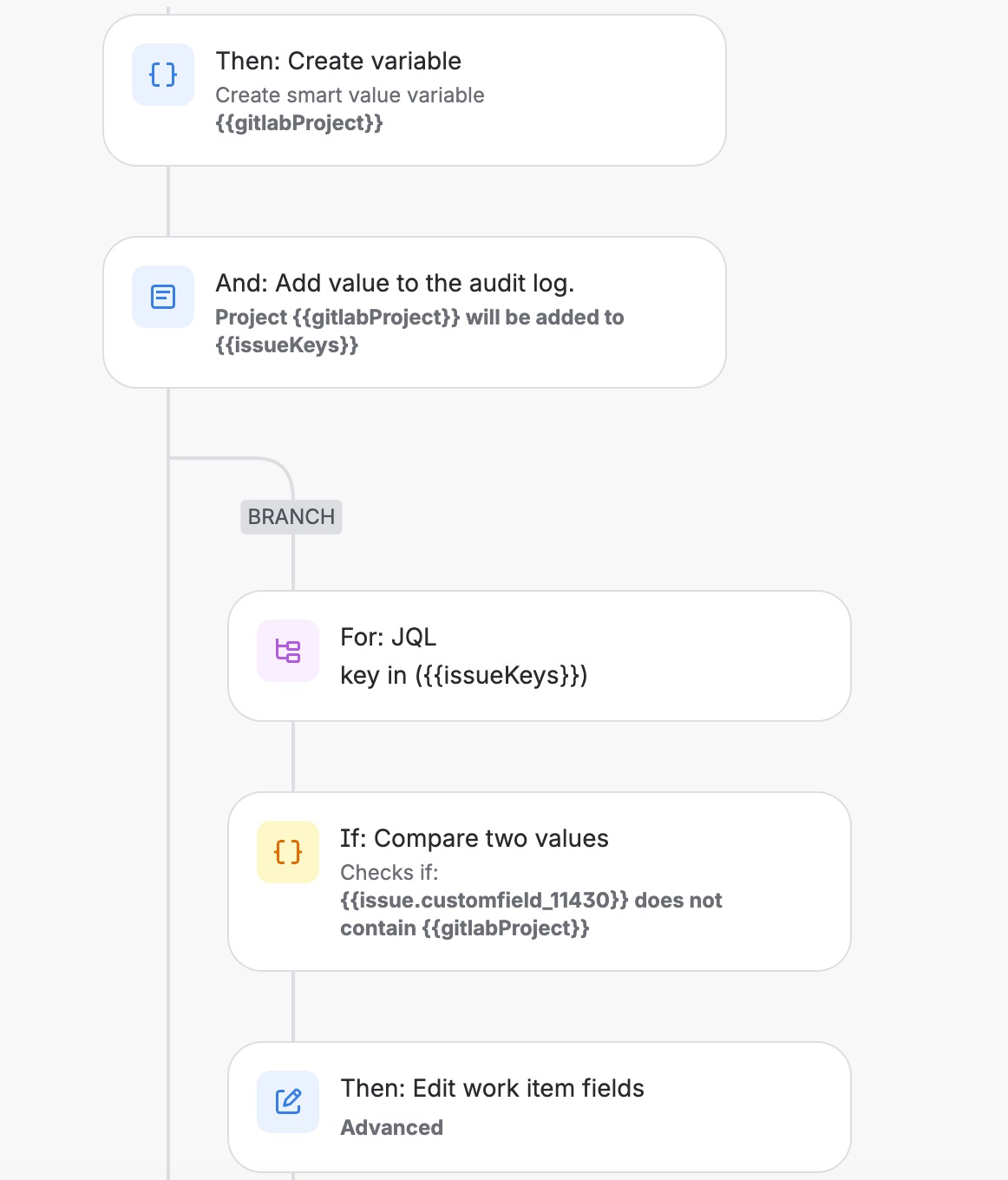
Variable: gitlabProject
Normalize the project name into a safe label value. The following expression transforms it into kebab-case.
{{webhookData.project.name.trim().toLowerCase().replaceAll("[^a-z0-9]+","-").replaceAll("^-+|-+$","")}}
For a project named My Service API, this produces my-service-api. The label stays consistent regardless of how the project name is capitalized in GitLab.
Second IF: skip when no issue key was found
{{issueKeys}} does not equal Empty
Everything below this condition only runs when at least one issue key was matched.
You can add a Log action here for troubleshooting:
Project {{gitlabProject}} will be added to {{issueKeys}}
Branch rule: find the matching issues
Add a Branch rule → Related work items with the JQL:
key in ({{issueKeys}})
Inside the branch, add another IF to avoid redundant updates — only edit the issue when the label isn’t already there:
{{issue.customfield_99999}} does not contain {{gitlabProject}}
Replace customfield_99999 with the actual field ID of your GitLab Projects custom field. To find it: go to Jira Settings → Issues → Custom fields, click the field name, and copy the numeric ID from the browser URL — it will look like …customFieldId=99999.
Then add an Edit work item action using the Advanced JSON editor:
{
  "update": {
    "GitLab Projects": [
      {
        "add": "{{gitlabProject}}"
      }
    ]
  }
}
Step 4 - GitLab: Configure the webhook
- Go to your GitLab group → Settings → Webhooks
- Click Add new webhook
Configuration
| Field | Value |
|---|---|
| Name | Send push events to Jira |
| URL | The webhook URL from Jira Automation |
| Trigger | ✅ Push events — All branches |
| Custom header name | X-Automation-Webhook-Token |
| Custom header value | The secret from Jira Automation |
Step 5 - Test it
Branch name contains an issue key
- Create and push a branch:
feature/PROJ-123-add-login - Open Jira issue
PROJ-123 - The GitLab Projects field should now contain your GitLab Project’s normalized name
Commit message contains an issue key
- Push a commit with message like
PROJ-456 Fix null pointer on login - Open Jira issue
PROJ-456and verify the label was added
Wrapping up
From this point on, every push across your GitLab group automatically stamps the referenced Jira issues with the GitLab Project name. The GitLab Projects label field becomes a reliable index you can use in JQL, dashboards, and reports.